
Add & remove Area members
How members get into an Area depends on the kind of Area:
- Public Areas: Members can join and leave on their own. Admins can still add or remove members at any time.
- Private Areas: Members cannot join on their own. An admin adds them.
Adding and removing members works the same way in both kinds of Area.
Who can add and remove members
Section titled “Who can add and remove members”- The Admins of your Klubraum can do it in every Area.
- Area Admins can do it in the Areas they manage.
Add members to an Area
Section titled “Add members to an Area”This works on every Klubraum plan.
- Open the Area.
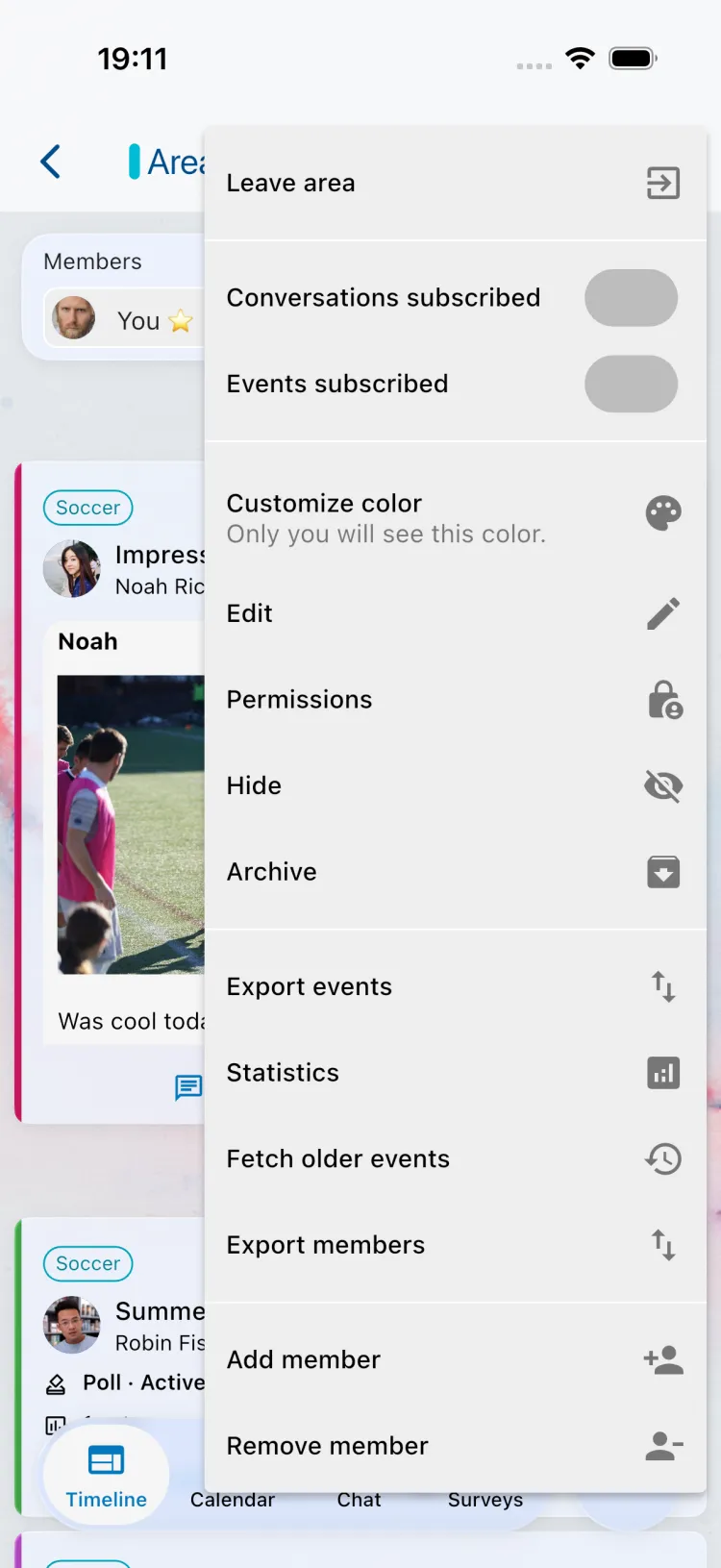
- Open the Area Menu (three dots in the top right) and choose Add member.
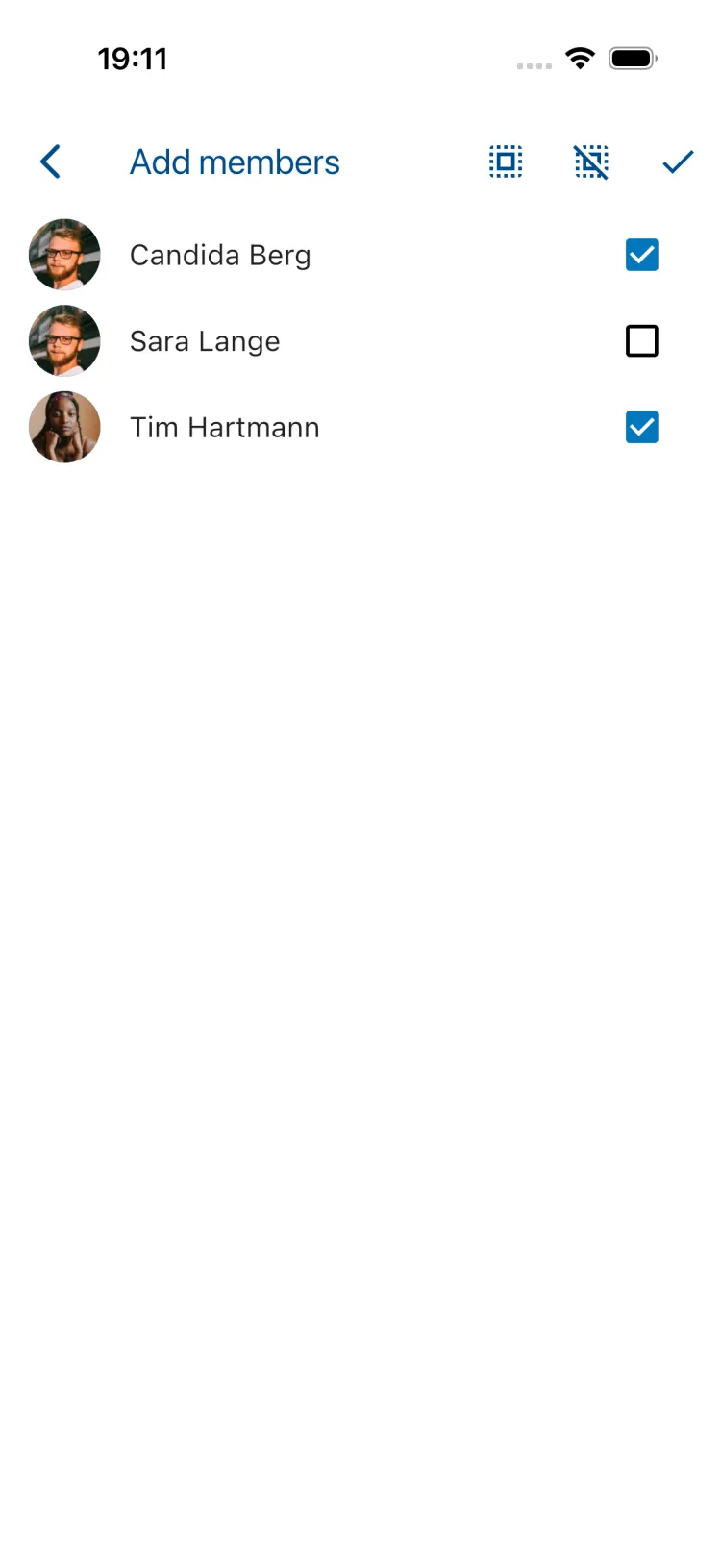
- Type a name to search, or tap Select from member list to see all members of your Klubraum who are not in the Area yet. Tick one or more members.
- Tap the check mark in the top right. The members are added straight away.
Assign many members to several Areas at once (Pro)
Section titled “Assign many members to several Areas at once (Pro)”At the start of a season, or when lots of new members join, adding them Area by Area takes time. With Klubraum Pro, the Admins of your Klubraum assign many members to several Areas in one step.
Where to start
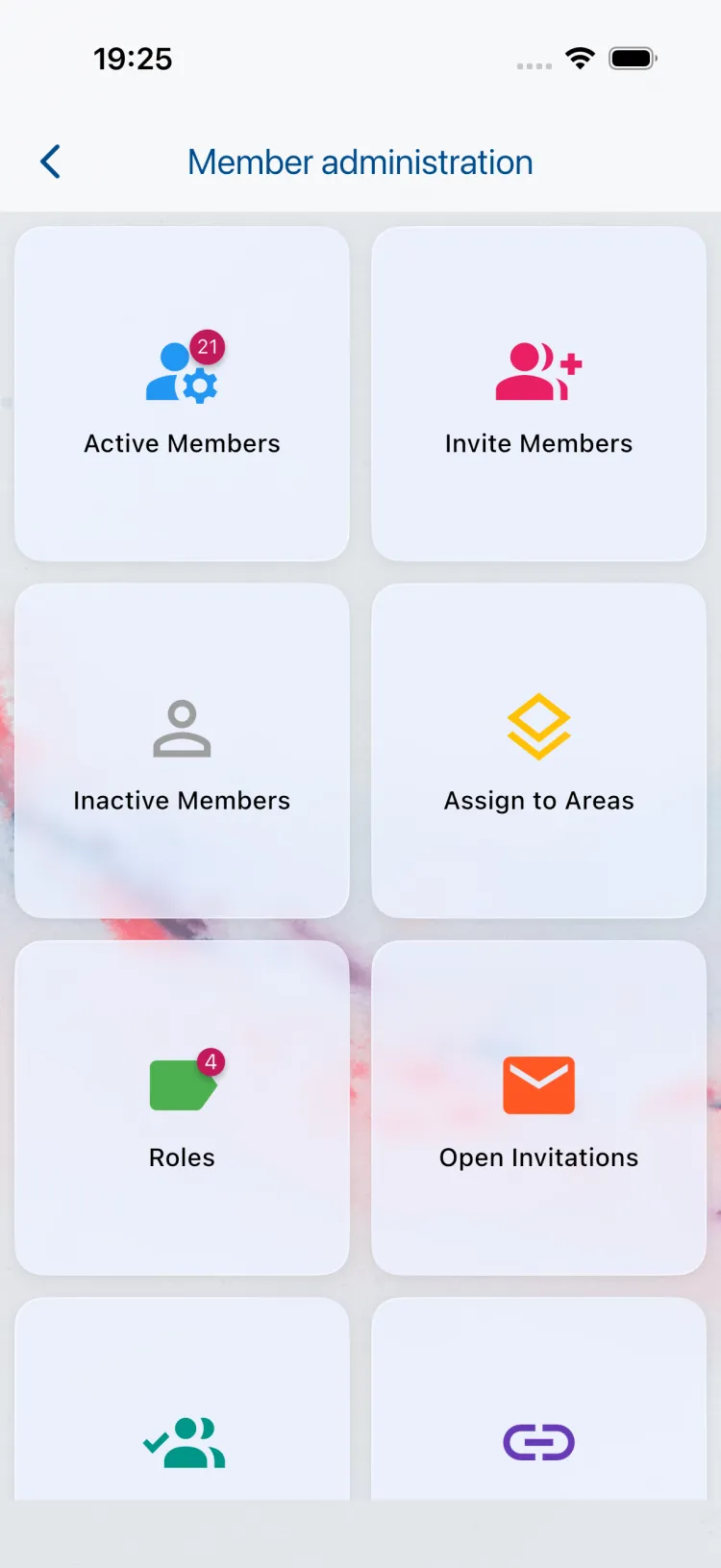
Section titled “Where to start”- Open the member list and tap the gear symbol (Manage members). In the Member administration, choose Assign to Areas.
- On a larger screen, for example in the Web App, open Active Members in the Member administration, select members and click Assign selected members to areas. The selected members are already ticked.
- On the timeline card of a new member, tap Assign areas. That member is already ticked.
On your phone: three steps
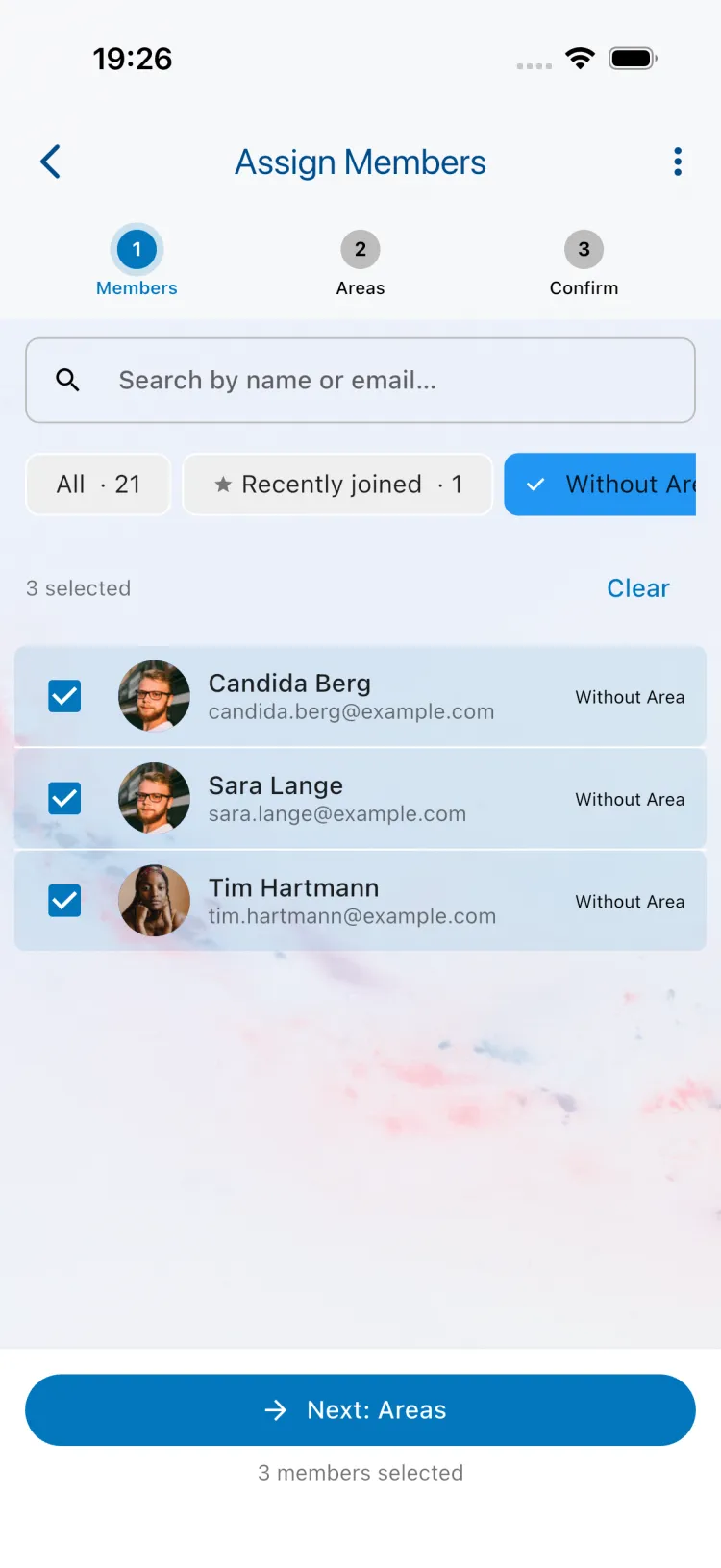
Section titled “On your phone: three steps”- Members: Tick the members you want to assign. Search by name or email, or use the filters Recently joined and Without Area to find new members quickly. Then tap Next: Areas.
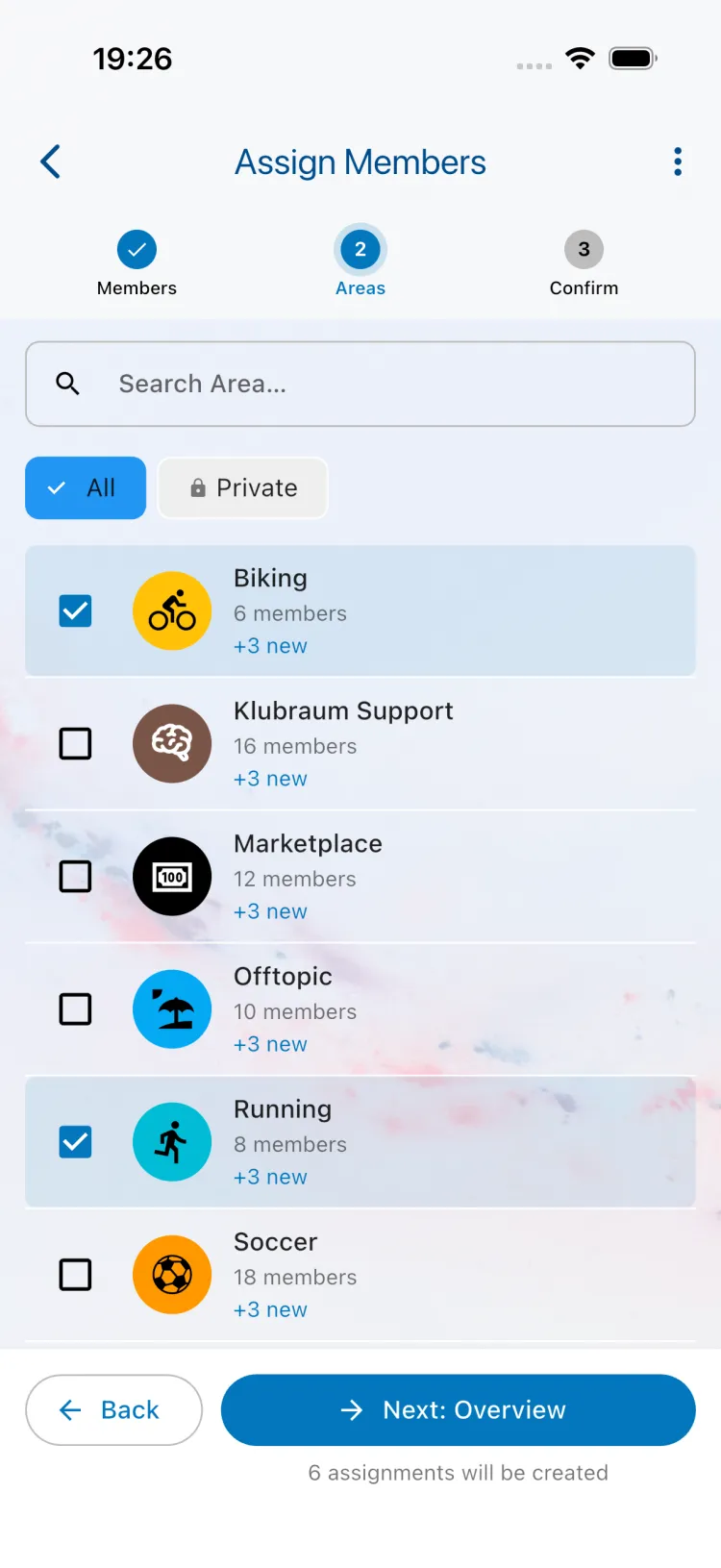
- Areas: Tick the Areas the members should join. With Show area groups you can also pick a whole Area Group: its members are added to every Area in the group. Then tap Next: Overview.
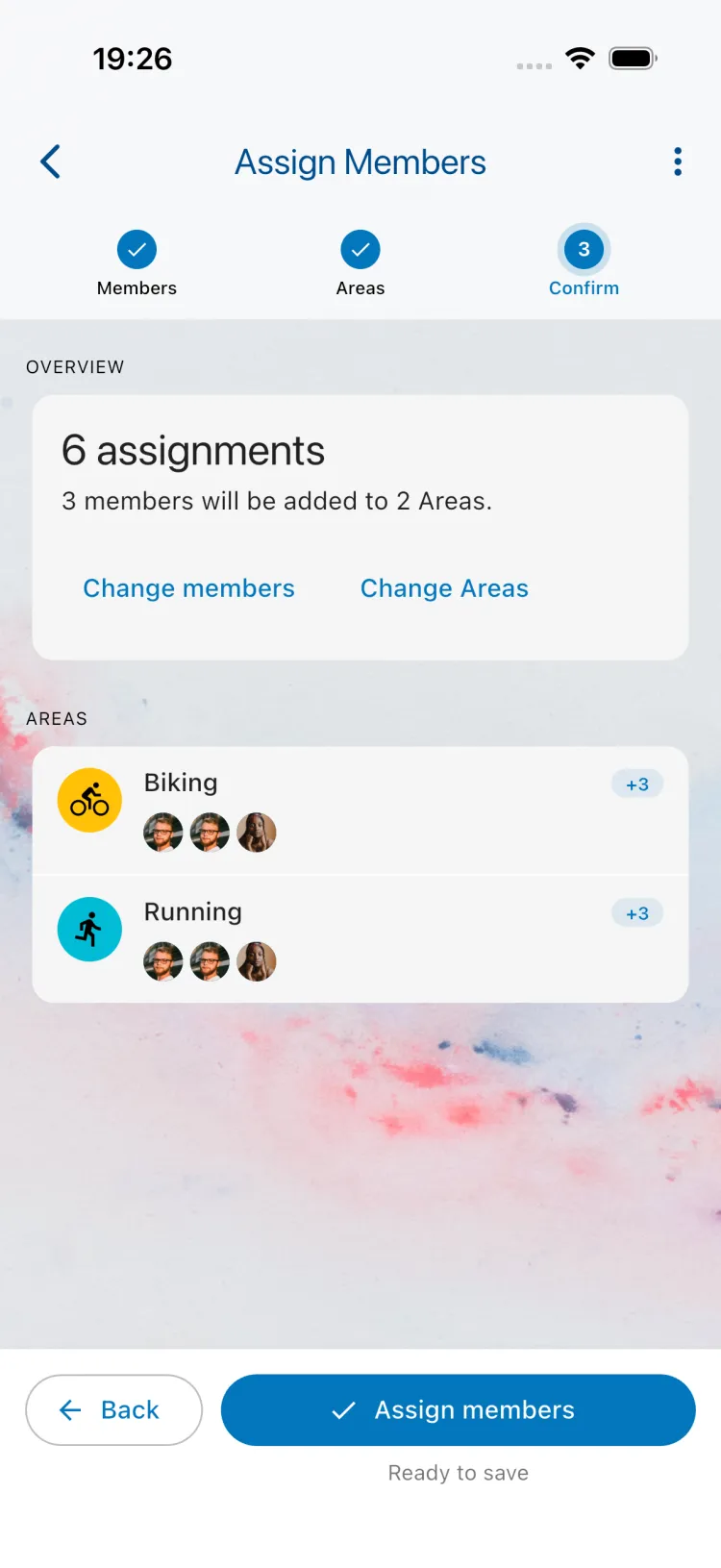
- Confirm: Check the overview, for example “3 members will be added to 2 Areas”, and tap Assign members.
On a computer: drag and drop
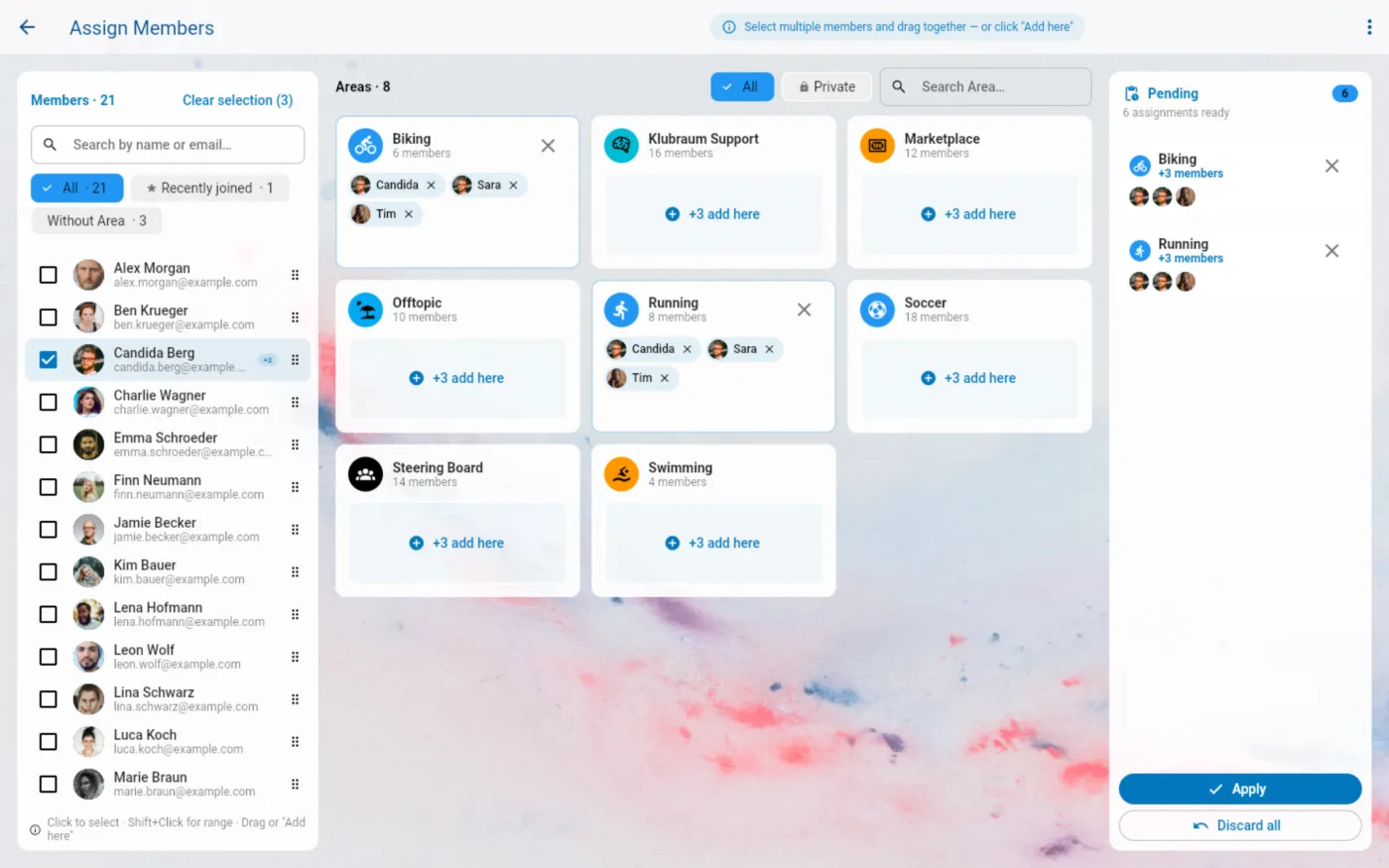
Section titled “On a computer: drag and drop”On a larger screen, for example in the Web App, you see your members and Areas side by side:
- Select one or more members (hold Shift to select a whole range).
- Drag them onto an Area, or click add here on the Area.
- Your changes collect in the Pending list. Check them, then click Apply.
This way you can give each Area its own selection of members before saving everything at once.
Remove members from an Area
Section titled “Remove members from an Area”- Open the Area.
- Open the Area Menu and choose Remove member.
- Select the members you want to remove and tap the check mark.
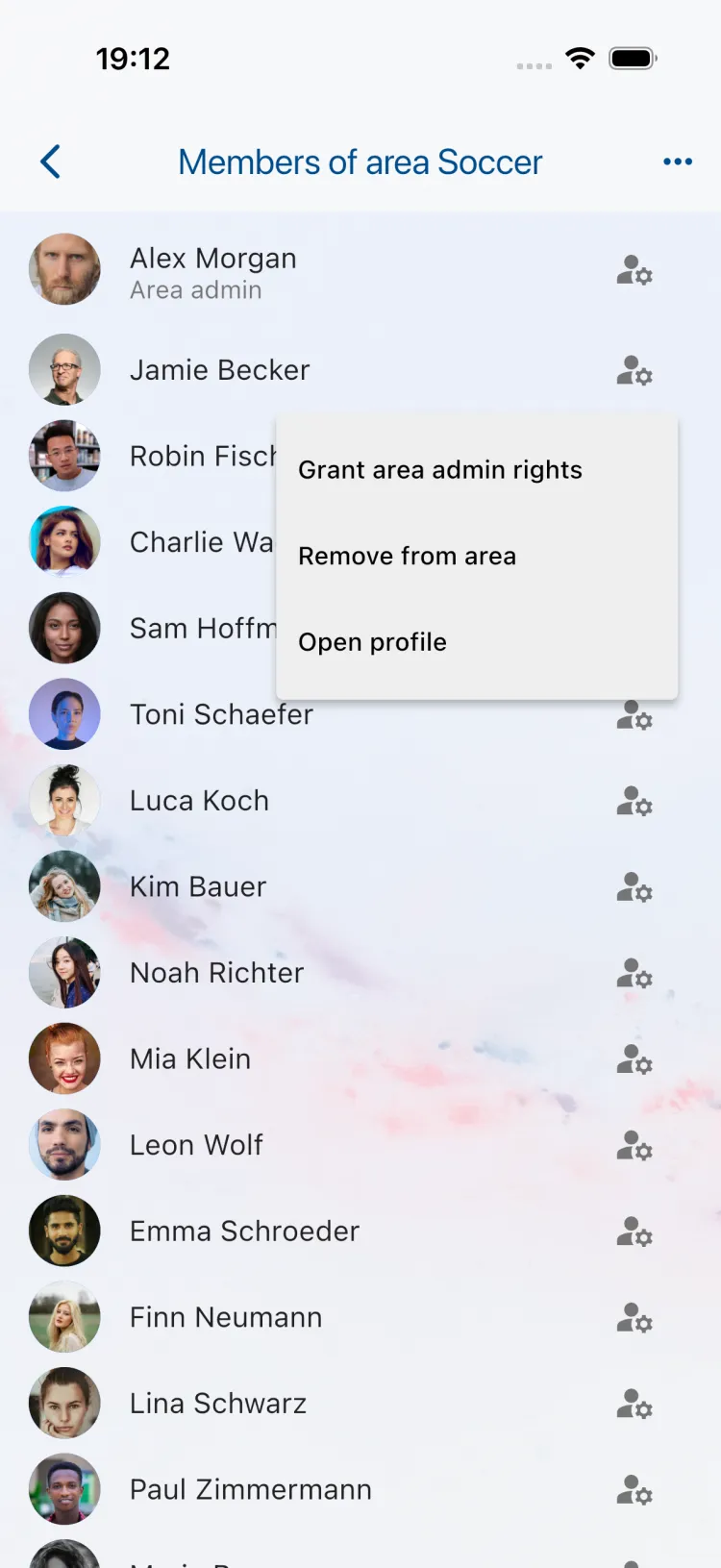
You can also tap Members at the top of the Area to open its member list. Tap the symbol next to a member and choose Remove from area.
Removed members lose access to a private Area and no longer get its notifications. They stay members of your Klubraum. To remove someone from the whole Klubraum, see Remove members.
Good to know
Section titled “Good to know”- Not on Pro? Adding and removing members Area by Area works on every plan. If you open Assign to Areas without Klubraum Pro, Klubraum shows you what the feature does and how to upgrade.
- Only active members: You can only add people who have already joined your Klubraum. Invite them first.
- Members, not Area Admins: Members are always added as normal members. To make someone an Area Admin, see Area Admin.
- Already in the Area: Members who are already in an Area are simply skipped.
- What added members notice: They get the Area’s notifications from now on, and their timeline shows who added them to which Area.
Related articles
Section titled “Related articles”- Join Area
- Private Area
- Area Admin
- Per-Area permissions – who may create content in an Area
- Invite members